How To Point Nameservers from Namecheap to The Golden Arts Hosting


Namecheap
 and GoDaddy are two popular domain registration services, and The Golden Arts Hosting is one of the best hosting companies.

However, when you buy a domain from a domain registrar, you will need to change the nameservers to point to your web hosting company (in this case The Golden Arts Hosting).

Every hosting account comes with specific nameservers, and you need to make sure to update the nameservers in your domain registrar to point to your web host. But don’t worry if this sounds hard, it’s very easy to do.

Here’s a tutorial which will show you how to point your Namecheap domain to your Golden Arts hosting account.

Note: This process is the same for all domain registrars and web hosting companies. The specific locations of everything are different, but the process is the same.

How To Connect Namecheap Domain to The Golden Arts Hosting:

Namecheap is one of the most reliable domain registration companies out there. Part of their appeal is that they are always offering various promotional discounts for cheap domains.

The Golden Arts Hosting is a very reliable and fast cloud hosting company. Our hosting service is tailor-made for the clients that we service.

So here we need to take the Namecheap domain and point it to The Golden Arts hosting nameservers.

*START HERE – The Golden Arts Hosting nameservers are:

  • ns224.cloudwebhosting.com
  • ns225.cloudwebhosting.com

You simply have to log into your Namecheap account and update the nameservers.

To change the Namecheap nameservers:

  • Log into your Namecheap account and click on “Domain List” on the left sidebar.
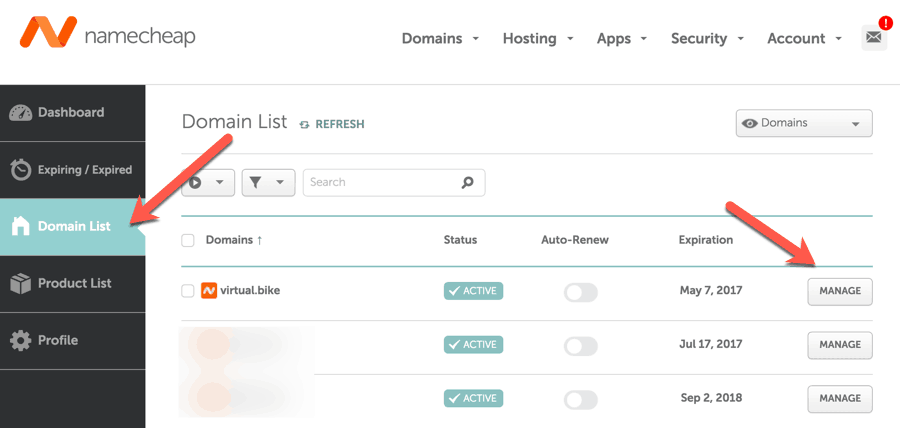
This will list all of the domains under your Namecheap account.

  • Click on “Manage” in front of the domain name which you want to point.

This will take you to your domain management page.

  • Scroll down until you see the section that says “NAMESERVERS” & select the “Custom DNS” option from the dropdown menu.
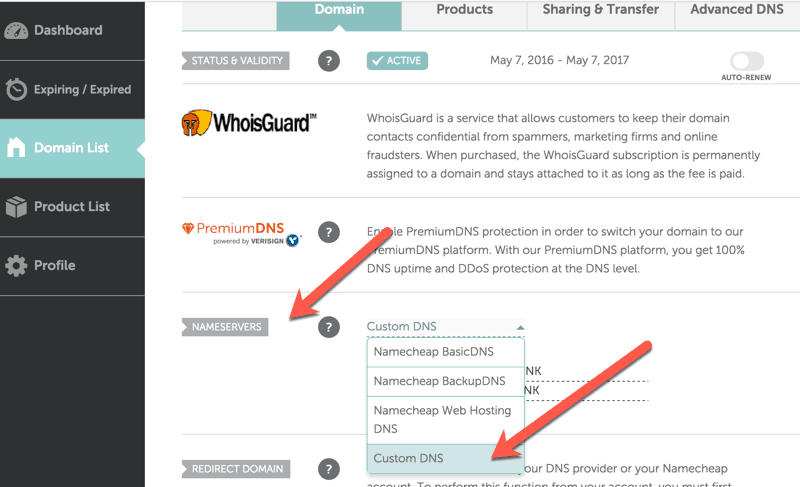
This will bring up the nameservers tab where you can add your custom nameservers.

So, here we will add:

  • ns224.cloudwebhosting.com
  • ns225.cloudwebhosting.com

This will point our domain to the The Golden Arts Hosting servers.

Similarly, if you are using any other web hosting company, all you need to do is find the nameservers of the web host and add them into the “Custom DNS” section of Namecheap.

  • When done, click on the green checkmark to save your new nameserver changes.
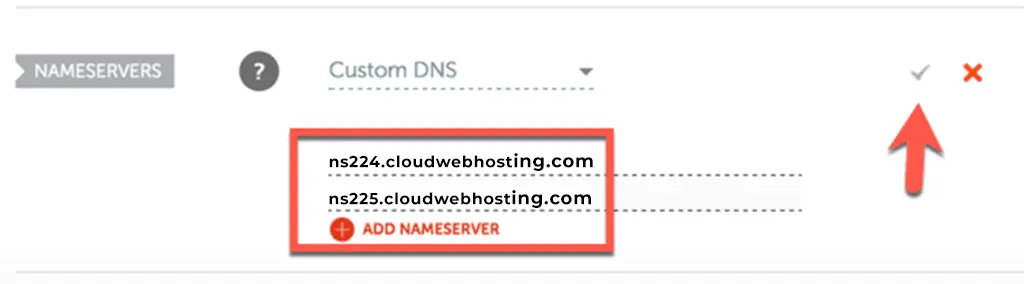
It takes some time for these changes to take effect (upto 48 hours), so don’t worry if your site still opens the Namecheap default page.

Now, you’re done you can write us a message and inform us that this has been completed!

How To Get Started With Our Cloud Hosting Plans?

How To Get Started With Our Cloud Hosting Plans?

What makes us different than any other hosting provider is that we offer a tailor made service. Most of our clients we actually work closely with and design their website. This gives us an advantage and the incentive to configure your hosting plan in order to get the maximum results for your website.

In this brief tutorial, we’ll show you how to get started. This guide is idea for those who have already purchased a domain name with a registar (such as GoDaddy, Namecheap, Bluehost etc.) and are simply looking to secure high performing web hosting.

1) Go here and select a hosting package.

For this example, we’re going to with the our Cloud Gold plan.

2) Once you’ve selected your desired package select “Order Now” .

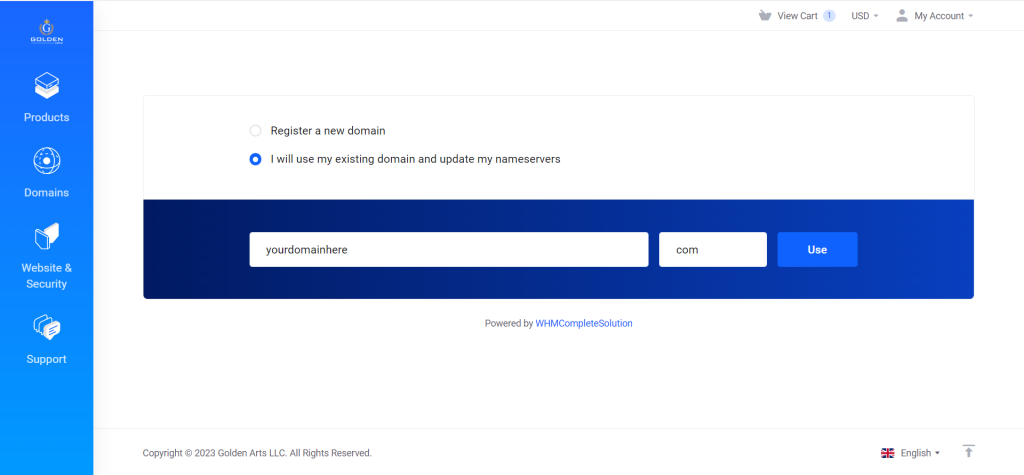
3) In step three, you’ll choose how you want to handle your domain name. If you would like to register a new domain please select “Register a new domain” . For those that would like to Transfer your domain to us please select the transfer domain option. Finally, for those that are satisfied with your current domain registar and simply want to purchase a hosting plan please select “I will use my existing domain and update my nameservers“. For this guide we’re going to choose the last option “I will use my existing domain and update my nameservers“.

Please be sure to enter just your existing domain name in the field labeled “Example“. Next, in the last empty field to the right enter your domain extension without the dot such as com, net, org etc. Please see the image shown above for a example.

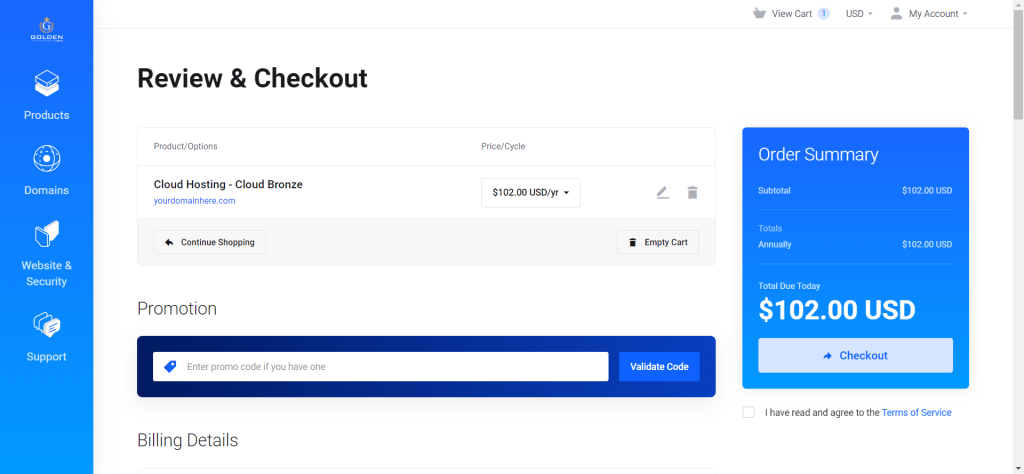
4) Finally we’ll review the cart and then proceed to checkout.

5) During the checkout process be sure to enter your correct email, as this will be the method of corresponding and how you’ll gain access to your account. Also please be sure to record and remember your password.

6) Now that you’ve made the hosting purchase simply go to your domain registrar and update your DNS nameservers to:

ns99.cloudracked.com

ns100.cloudracked.com

Please visit the link here to follow our guide on how to update your nameservers to The Golden Arts Hosting.

7) Once completed, (if you’re a web design client of ours) you can write us and let us know so that we can apply your hosting and design bundle discount to our web design service.

How To Register A Domain & Signup For Web Hosting with us

How To Register A Domain & Signup For Web Hosting with us?

What makes us different from any registrar or web host on the Internet is our ability to allow you to register a domainpurchase web hosting and manage everything from a powerful and easy to use platform.  

In this brief tutorial, we’ll show you how to get started.

1) Go to www.hosting.thegoldenarts.com and enter your desired domain (See also – How To Get Started With Our Cloud Hosting Plans).  

For this example, we’re going to register GoldenSupportHero.com and click the blue search button. 

2) Once we find out the domain is available (which is clear next to status pictured in green below), we’ll select the button ORDER NOW.  Please keep in mind that our .com domains are only $14.95 for the entire year!

3) In step three, we’ll select our Hosting package.

So now your domain has been added to your cart. Next, let’s add web hosting! You’ll see a notice that reads “No Hosting! Click to Add” simply click on that text to navigate to the next page.
For this example, we’re going to select our “Cloud Sliver” package for $14.50/month. This is our most popular package. Select Cloud Sliver and click Order.

4) Since we’re already in the process of registering a domain, we’ll select “Use a domain already in my shopping cart” on the next page.

5) Finally we’ll review the cart and then proceed to checkout.

6) During the checkout process be sure to enter your correct email, as this will be the method of corresponding and how you’ll gain access to your account. Also please be sure to record and remember your password.

7. Once completed, (if you’re a web design client of ours) you can write us and let us know so that we can apply your hosting and design bundle discount to our web design service.